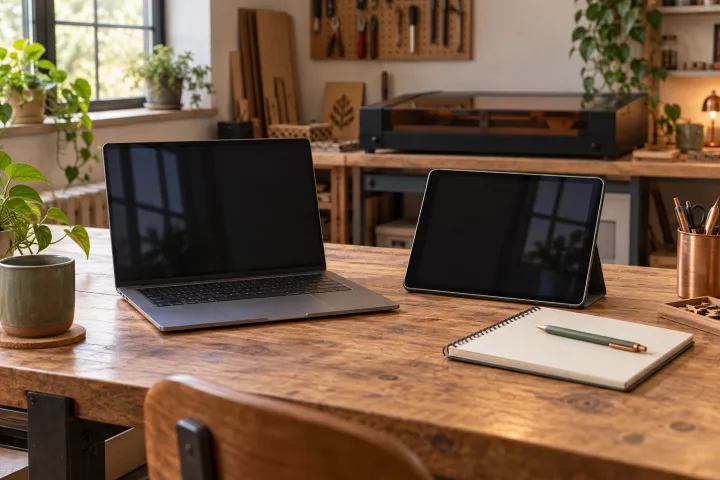
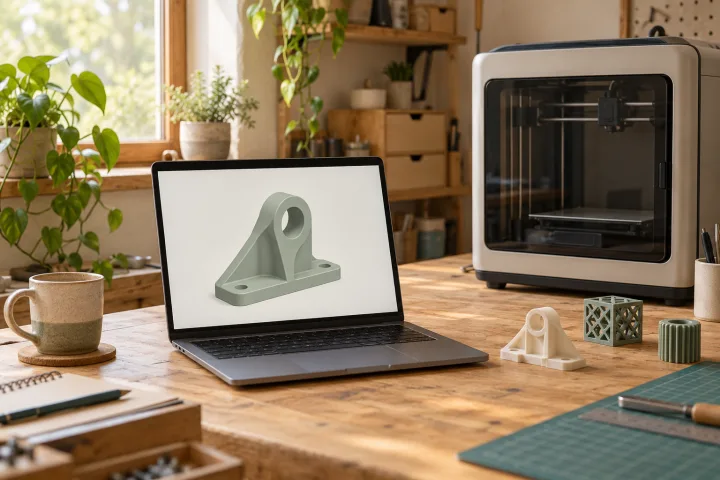
The best laptop for laser engraving is one that runs your actual software, connects to your controller through a documented setup, and handles the artwork you create. For routine LightBurn work, an SSD and the practical 8 GB RAM tier are sensible starting points. Choose 16 GB when you also edit images, use CAD, or keep several design applications open.
Check the operating system, controller drivers, and physical data ports before paying for a gaming GPU. No laptop specification guarantees support for every laser. Preparing names for small tags is a different workload from editing detailed photographs or large CAD projects.
This guide translates official LightBurn 2.1 documentation into buying decisions. We have not benchmarked laptops, tested controller combinations, or verified retail availability. The configurations below are criteria to compare, not a tested model ranking; confirm the current installer and your exact machine before ordering.
Start with the software, not the laptop brand
When comparing laser engraving laptops, write down four things first: the engraver model, its controller, the software you will use, and the connection method. A manufacturer app, an artwork editor, and LightBurn can have different requirements. Record any camera or accessory features you need, too; a software logo on a product page does not verify the whole setup.
For LightBurn 2.1, the official installation page lists 64-bit Windows 10/11 and macOS 12 or later. Apple Silicon is supported. Check the version-specific installation steps as well as the OS name. These are software requirements, not approval of every controller driver, accessory, or other application. LightBurn 2.1 requirements.
Windows and Mac are both options when the complete workflow is supported. Choose between them after checking your other design applications and the laser manufacturer’s instructions. A laptop for a laser cutter must support the machine-control workflow as well as the artwork editor. For ChromeOS, iPadOS, and Windows tablets, read our LightBurn Chromebook and tablet compatibility guide before buying around a workaround.
Translate LightBurn requirements into a shopping brief
LightBurn laptop requirements separate three different goals: the absolute minimum to run the application, a practical minimum for typical work, and a recommended setup for design and multitasking. Keep those tiers separate when comparing specifications. These selected values are not the complete specification sheet:
| Item | Absolute minimum | Practical minimum | Recommended tier |
|---|---|---|---|
| RAM | 4 GB | 8 GB | 16 GB |
| Storage type | Mechanical drive | SSD | At least 256 GB NVMe SSD |
| Screen resolution | 1280 × 1024 | 1920 × 1080 | 1920 × 1080 or higher |
LightBurn 2.1 needs at least 450 MB of free space for installation, plus room for your files. That installation allowance is not a sensible SSD capacity for a working computer. Budget separately for source artwork, project copies, exports, and backups. The official table also provides processor guidance; none of these tiers guarantees a particular job time.
Use the documented tiers as starting points for a purchase shortlist:
- Ordinary LightBurn work: consider a Core i3 or Ryzen 3-class processor, 8 GB RAM, an SSD, and a 1920 × 1080 display. These are the documented practical-minimum specifications, subject to the OS and connection checks above.
- Design work and multitasking: consider the recommended Core i5 or Ryzen 5-or-newer / Apple M-series tier, 16 GB RAM, at least a 256 GB NVMe SSD, and a 1920 × 1080 or higher display when running design tools alongside LightBurn and a browser.
The 4 GB absolute minimum is a fallback, not our default buying target. Extra RAM cannot fix an unsupported OS or driver. Check upgrade options for the exact configuration: two laptops sold under the same model name may not offer the same memory or storage upgrades.
Which laptop configuration should you choose?
The best laptops for laser engraving depend on the work around the laser, not just the machine itself. Use these three scenarios to turn the table into a practical decision. They are editorial buying criteria, not results from testing specific models.
A. LightBurn-first workflow. If you mainly import or arrange ordinary artwork and prepare jobs for a compatible laser, start with the practical tier above. Before settling on 8 GB, consider what will stay open alongside LightBurn. A browser, a camera workflow, and larger image files are reasons to assess memory headroom rather than shopping by the installation minimum alone.
B. LightBurn plus image editing and design tools. Start your comparison at 16 GB RAM and a more capable modern processor if you regularly move between photographs, vector artwork, CAD, and LightBurn. Check each application’s current requirements separately, including graphics needs. The recommended LightBurn tier does not automatically cover a demanding CAD assembly or image-editing workload.
C. Reusing an existing laptop. Check the OS version and processor architecture, then select a compatible LightBurn version. Confirm the controller driver, identify the data port and any adapter, and check free storage for the application and your project archive. Open a representative file, edit it, preview the job, and switch between the applications you normally use. Any machine connection or operating check must follow the manufacturer’s procedure. Keep the existing computer if the complete workflow meets your needs; age alone is not a reason to replace it.
Check the ports and the actual controller connection
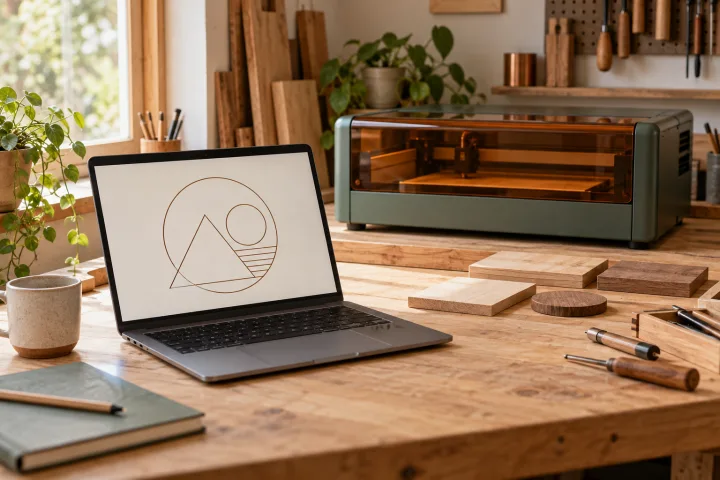
Make a connection inventory before ordering: engraver, camera if used, mouse or other pointing device, external display, and attached storage. Count what must connect at the same time. Ask the laser manufacturer to confirm the supported connection method, cable ends, driver, OS/architecture, and any adapter restrictions for your exact controller.
A USB-C connector describes a physical shape; it does not tell you whether a particular cable supports data. A charge-only cable cannot carry the engraver’s data connection. If the computer and machine have different connectors, choose a data-capable cable or adapter that matches the documented connection. Charging support or a matching plug shape is not enough evidence. This is a cable-and-controller question, not a reason to buy a faster CPU.
LightBurn’s guide notes that you may need to reselect the communication port after rebooting or moving the controller to another USB port. An empty port list can indicate a physical connection, power, or driver problem. Connecting to your laser. Check those causes before treating a missing device as a laptop-performance problem.
For LightBurn 2.1 on Windows ARM, the documentation calls for manual installation of the USB drivers used to connect to a laser. Verify the instructions for the version and controller you intend to use before buying an ARM laptop. Network support is also machine-specific: a laptop with Wi-Fi does not make a USB-only controller wireless.
The same checks apply whether you need a laptop for diode laser engraving or a laptop for CO2 laser engraving. The laser source alone does not identify the controller, driver, or supported USB/Ethernet/network workflow. Use the machine manufacturer’s controller documentation rather than inferring compatibility from the laser type.
Keep cables and normal computer use clear of the work area. Follow the machine’s supervision and operating instructions. A remote connection or a powerful laptop does not replace required supervision; our small workshop laser setup guide covers those installation decisions separately.
Match the screen and processor to the work you do
Check the workspace at the display scaling you will actually use. A Full HD specification is less useful if you cannot comfortably read settings, inspect placement, and reach the toolbars. If you plan to use an external monitor, include its cable, display connection, and desk space in the buying decision.
Where a trial or demonstration is available, use a representative project instead of a game benchmark. Open your artwork, edit it, run the preview, and switch to your usual applications. For example, resizing a small vector tag and editing a detailed image exercise different parts of the workflow. Record the file, software versions, and steps so you are comparing the same task.
If you model parts, edit large images, or render scenes, assess those applications separately. Our laptop guide for 3D printing and CAD explains why a slicer and a substantial CAD assembly may need different hardware. Buy graphics capability for software that requires it; laser optical power is not a laptop-performance specification.
Match the License to the Controller, Not the Computer
Meeting the computer requirements does not settle which LightBurn license you need. In LightBurn’s version 2.1 licensing documentation, Core covers supported GCode devices; Pro adds supported DSP and Galvo devices. This is a controller distinction, not a faster-computer tier.
Ask the machine supplier for the exact controller and its documented LightBurn support before ordering the computer or license. Record the required license, software version, and connection method together. More memory does not add controller support, and a description such as “laser compatible” does not identify the necessary license.
Keep three separate checks in your shopping notes: the application runs on the computer; it supports the machine; and your license covers that controller. Resolve all three before spending more on hardware.
Plan the Move from Your Existing Computer
A replacement laptop needs both your working files and your application configuration. LightBurn’s User Bundles reference describes bundles for settings, devices, and libraries, but excludes project files. Exporting a bundle alone is not an artwork backup.
Inventory editable projects, linked source artwork, application settings, and libraries. Record the working LightBurn version and required drivers. Keep the old copies until the new computer can open the documents and you have checked the transferred configuration against the exact machine’s documentation. A setting from one device is not automatically suitable for another.
For LightBurn 2.1, use File → Bundles → Export Bundle on the configured computer and choose the components to include. Copy the bundle and project files separately; use File → Bundles → Import Bundle on the new computer. Use the User Bundles reference linked above for the transfer steps, and check any fonts your projects need separately.
Before calling the move complete, perform a document-only check: find the correct revision, open its artwork, confirm the intended units, and locate the needed libraries. Write down anything missing. Machine commissioning and operating checks still belong to the manufacturer’s procedure.
A purchase checklist without a fake shortlist
Before ordering a specific computer for laser engraving, make sure you can check off each item:
- Software: record the LightBurn version, supported OS, and processor architecture for the exact computer.
- Controller and drivers: identify the controller and obtain the manufacturer’s supported driver/connection instructions.
- Memory and storage: choose the practical or multitasking tier for your workload; allow space for artwork and backups, not just installation.
- Screen: check resolution and usable scaling, plus the connection for any external display.
- Ports and accessories: count simultaneous connections and include the required data cables, adapters, camera, and peripherals.
- Other applications: check your image editor, CAD software, and other design tools against their own requirements.
- Total cost: obtain current quotes for the exact laptop configuration, required license, and accessories before comparing the complete budget.
If you have not chosen the engraver, start with the material-first laser engraver buying guide. A computer purchase cannot decide which laser source is suitable for your stock.
Final decision: what matters most?
Choose a laptop for the complete workflow you can document, not the most expensive specification sheet. Once the OS, controller, drivers, and connection are settled, spend for the files and applications you actually use. Leave room in the budget for the right license, cables, adapters, and backups.
The existing “From Requirements to Reality” checkpoint near the top provides one concrete configuration to compare with these criteria. It is an example to investigate, not proof of compatibility with your laser or a hands-on recommendation. Check the exact specifications and merchant terms before deciding.
Questions before buying a laptop for LightBurn
Do I need a gaming laptop for laser engraving?
No gaming label is required by the LightBurn 2.1 tiers summarized above. Start with the supported OS, practical hardware tier, and controller connection. Consider a dedicated GPU only when your other software or workload calls for it; being connected to a laser is not, by itself, that requirement.
Is 8 GB or 16 GB RAM the better starting point?
The practical tier is a starting point for ordinary LightBurn use; the recommended tier is intended for design and multitasking. Choose based on the applications and file sizes you will keep open together. Neither amount promises a job time. Check the exact model’s upgrade options as well as the memory included at purchase.
Can I reuse an older laptop?
Yes, potentially. Check the requirements for the specific LightBurn version, the supported OS and architecture, available storage, drivers, and connection method. Try a representative file through your normal document workflow before replacing the computer. Another owner’s success with different software, drivers, or stock does not verify your setup.
Can I use a regular Windows laptop for laser engraving?
A Windows laptop for laser engraving can be a practical choice when it meets the software requirements and has a documented connection to your controller. Check the exact Windows version and architecture, not just the Windows logo. An Intel/AMD configuration and a Windows ARM configuration can require different driver checks.
Will a USB-C laptop work with my laser engraver?
It may, with the correct documented data connection. Confirm the engraver’s port, the cable’s data support, any adapter, and the driver for your OS and controller. USB-C charging support alone does not confirm an engraver connection, and an adapter cannot add software or controller support.
Browse the Electronics guides for laptops and maker tech when you need to revisit the platform or 3D-workflow decision.
Sources & specifications
Reviewed 2026-10-14. Software requirements change by version and platform; confirm your exact installer, hardware and machine workflow before purchase.
LightBurn Connecting to Your Laser
Checked · Controller selection and connection troubleshooting. Follow the exact machine and software configuration.Independent research. This article contains an affiliate recommendation; we may earn a commission on eligible purchases. How funding is disclosed.